Mobile App for Camper Rentals: Check-Out and Return in Minutes, No Paperwork
The camper handover looks the same at many rental companies: a sheet with a protocol on a clipboard, a pen that doesn’t write, photos taken with a private phone and sent to someone on WhatsApp later. Upon return, everyone searches for whether that scratch on the bumper was already there.
CamperFleet app on your phone changes this in a few minutes in the parking lot: a counter, fuel, photos from every side, and a walk-around video. Everything immediately loads to the reservation, and you and your staff have the whole rental day in your pocket.
Key Benefits in Brief
- Installation in 20 seconds, using a QR code. No App Store or Google Play needed, and your phone is logged in immediately.
- Step-by-step pickup and return. Large buttons, photos according to a list, a walkthrough video, and a summary before confirmation.
- Comparison of pickup and return. Photos from pickup are shown side-by-side, so any new damage is immediately apparent.
- Photos and videos send automatically, in the background and resuming with weak signal.
- All day on one screen: pickups, returns, tasks, and customer inquiries.
- Notifications for new inquiries and bookings, as well as a morning summary of the day.
- For you and every employee, included in the price of CamperFleet.
Installation: scan the code and you're done
In the panel, go to Integrations → Mobile App. You will see a QR code. The employee scans it with their phone camera and:
- the app opens, logged in immediately to their account, without entering a password,
- the app shows how to add the icon to the home screen: on Android with one button “Install”, on iPhone through “Share → Add to Home Screen” in Safari,
- from that moment on, CamperFleet opens from the icon like a regular app, on full screen.
The code is one-time and valid for 10 minutes. A photo of the code won't work for anyone after a week.
Technically, this is what’s called a PWA, or Progressive Web App, which is installed from the browser. For you, this means that you don’t wait for approval in the app store and you don’t have to monitor updates. Every fix is available to everyone at once.
Rental Day at a Glance
When you open the app, you see the Today screen:
- four tiles: how many vehicles you're dispatching today, how many are returning, how many tasks are pending, and how many inquiries are waiting for a response,
- list of dispatches and returns for the upcoming days, with a large button to „Dispatch Vehicle” or „Receive Vehicle” and a button to call the customer,
- “To Do”, e.g. a deadline to block on the portal where the camper is also listed, with a link to the portal panel and a “Done” button.
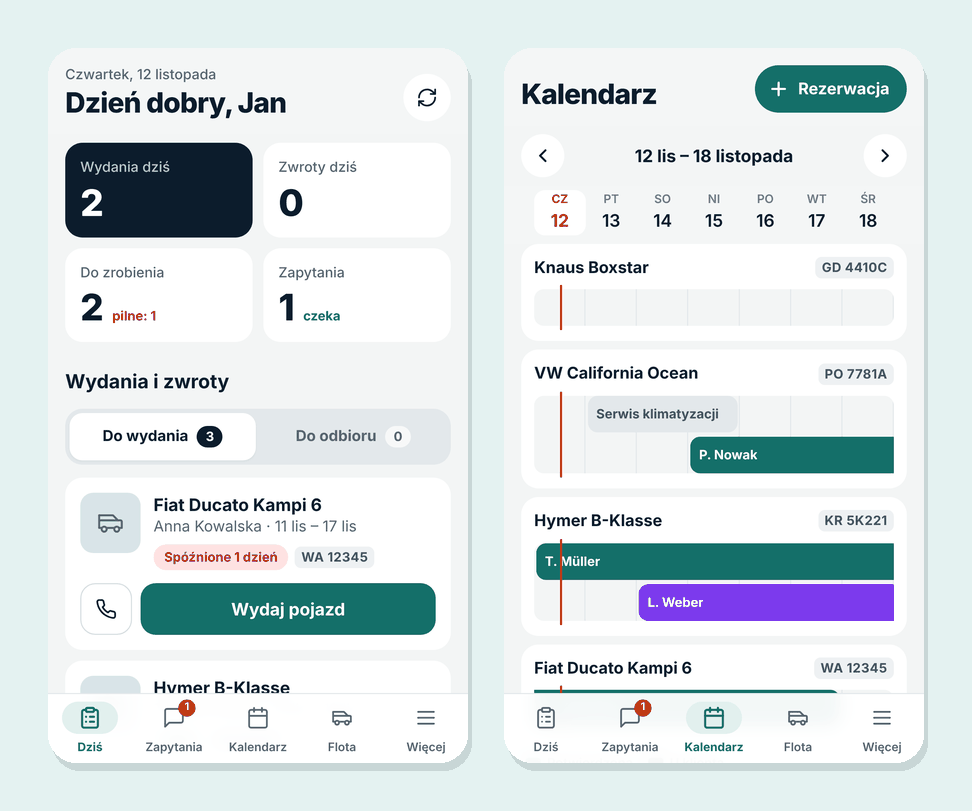
Is the customer late for pickup? The card is marked in red, and calling the customer is just a tap away.
Vehicle Handover Step by Step
The most important part of the application. Instead of one long form, you have four steps, and the 'Next' button is always at the bottom of the screen, under your thumb:
- Odometer and Fuel. Enter the odometer reading in one large field, and select the fuel level with one tap: empty, 1/4, 1/2, 3/4, or full. You can also add remarks here.
- Photos. The tiles guide you through a complete set of shots: front, back, both sides, interior, odometer, and fuel level. Tapping on a tile opens the camera. You add damage photos with a separate tile.
- Condition Video. You slowly record the entire camper all around. The video shows more than just a few photos, and in case of disputes, it is the strongest piece of evidence.
- Summary. You see the odometer, fuel, number of photos, and the video. You can correct anything with the 'Change' button, and then you confirm the handover.
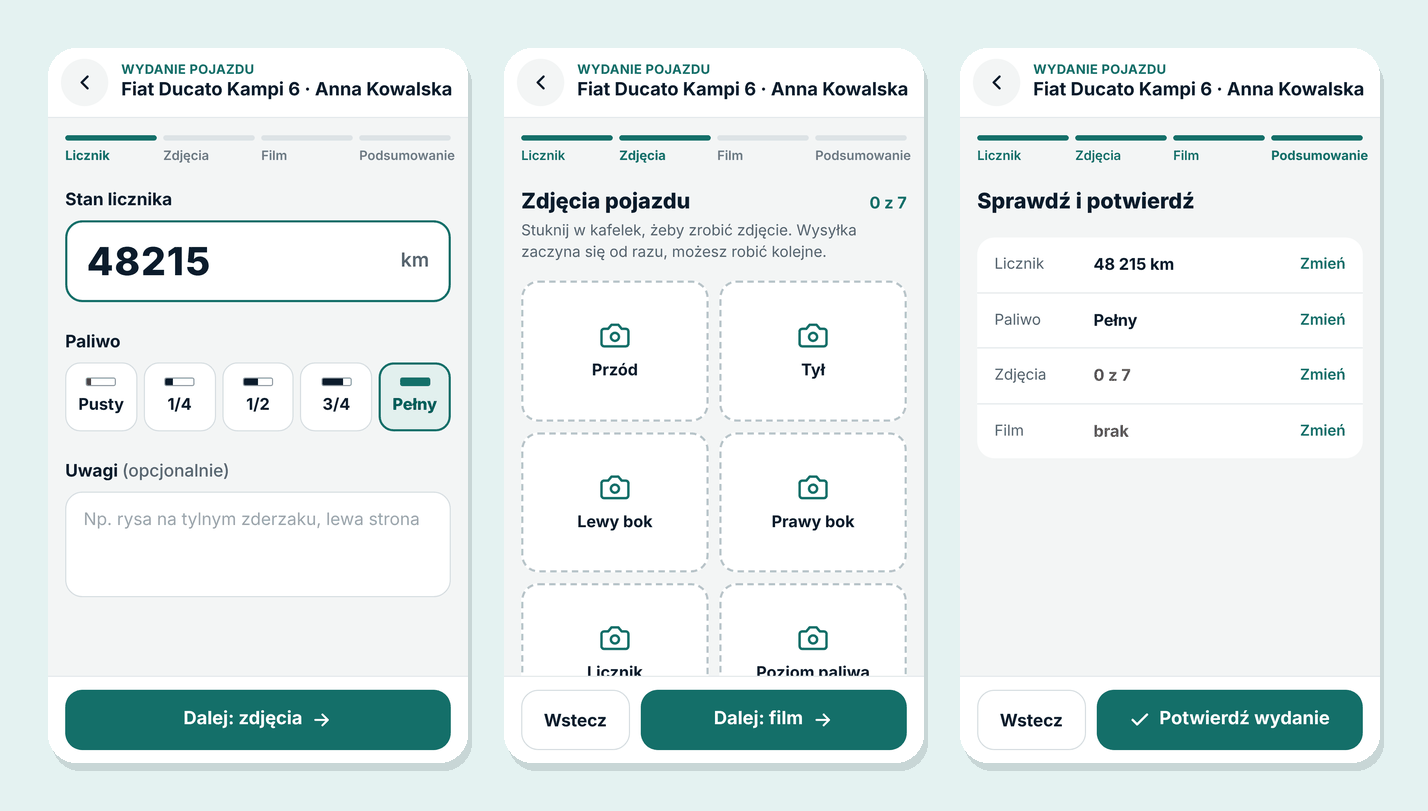
The protocol is saved with the reservation, along with the date and time. There are no papers to scan or photos to transfer from a personal phone.
More about why documenting the condition of the camper is essential and how it relates to the agreement: Camper Rental Agreement and Handover Protocol.
Return: comparison right on the spot
The return process is the same, with one important difference: the app shows the condition at handover.
- by the odometer, you see the reading at handover, and if you enter less, the app will warn you,
- for fuel, you see the level at handover,
- on each tile, the background image is a photo from handover from the same angle, so you take an identical photo and immediately see the difference.
In the last step, you settle the deposit: you either release it entirely or deduct the amount for damages, and possibly add an extra fee.
After the return, the panel and the app show a comparison of handover and return: photos from both protocols side by side, shot by shot. When discussing damages with the client or when reporting to the insurer, you have everything in one place.
Photos and videos that don't get lost
Parking for rentals rarely has good signal, and a business film can weigh several hundred megabytes. That's why the app:
- sends files in the background while you take more photos or move to the next step,
- splits large videos into small parts and if the connection is lost, it resumes sending automatically,
- reduces image sizes before sending, so the upload takes less time without noticeable quality loss,
- won't allow you to confirm the protocol until the files are sent, and failed uploads can be retried with one button.
Inquiries, Calendar, and Booking from Your Phone
The app is not just for pick-ups and returns. It features a simplified version of the most important screens from the dashboard:
- Inquiries. A list of messages from customers across all channels, marked with those awaiting a response. The owner can prepare a reply with the help of the assistant and send it directly from their phone.
- Fleet Calendar. Week by week, each camper with its full name and reservation blocks. The “Check availability” button shows the available vehicles for the dates the customer inquires about over the phone.
- Quick Booking. Select the vehicle and dates, the app calculates the price according to the price list, and saves the reservation.
- Vehicle Lockout. Camper in service? You can disable it from rental for selected days, and those dates will disappear from the booking page.
- Camper Instruction Photos and Videos. Upload new photos to the vehicle gallery and record “how to operate a camper” videos directly from your phone. The customer will see them on the vehicle's page and in the email after booking. More: Camper Operation Guide in Videos.
Notifications When Something Happens
Once notifications are enabled, the phone will alert you about:
- new inquiries and messages from clients,
- online bookings made on your site,
- deadlines to block on the platforms where the camper is listed,
- and in the morning, you'll receive a short summary of the day: what you're spending, what is returning, and what is pending.
Notifications can be enabled by any employee on their phone, so only those who want them will receive them.
Who is this for
- Owner who rents out campers themselves. You create a protocol in just a few minutes and have inquiries and calendar at hand, even when you’re not at your computer.
- Rental company with staff. Everyone rents out and collects according to the same step-by-step list, so the protocols are complete regardless of who was on duty.
- Multiple locations or parking far from the office. Everything that happens in the parking lot is immediately visible in the panel.
How to get started
- Log in to the CamperFleet panel.
- Go to Integrations → Mobile App.
- Scan the QR code with your phone and add the icon to your home screen.
- The next time you release a vehicle, tap "Release Vehicle" on the Today screen.
Don't have CamperFleet yet? Create an account and see how vehicle release looks without paperwork.